
Getting Started with MetaTrader 4
MetaTrader 4 (MT4) is the world's most popular trading platform, and for good reason. Its intuitive interface, powerful charting tools, and automated trading capabilities make it ideal for both beginners and professionals. Since its release in 2005, MT4 has become the industry standard, supported by thousands of brokers worldwide and trusted by millions of traders. Whether you are trading forex, commodities, indices, or cryptocurrencies, MT4 provides everything you need to analyze markets and execute trades from a single, unified platform.
Installing MT4 is straightforward. Your broker will provide a download link after you open an account — most brokers offer both desktop (Windows/Mac) and mobile (iOS/Android) versions. The installation takes less than a minute, and you can log in with the demo account credentials your broker provides. Many brokers also offer a web-based version that runs directly in your browser, requiring no installation at all. For the best experience, start with the desktop version, which offers the most comprehensive features and fastest performance.
Navigating the Platform
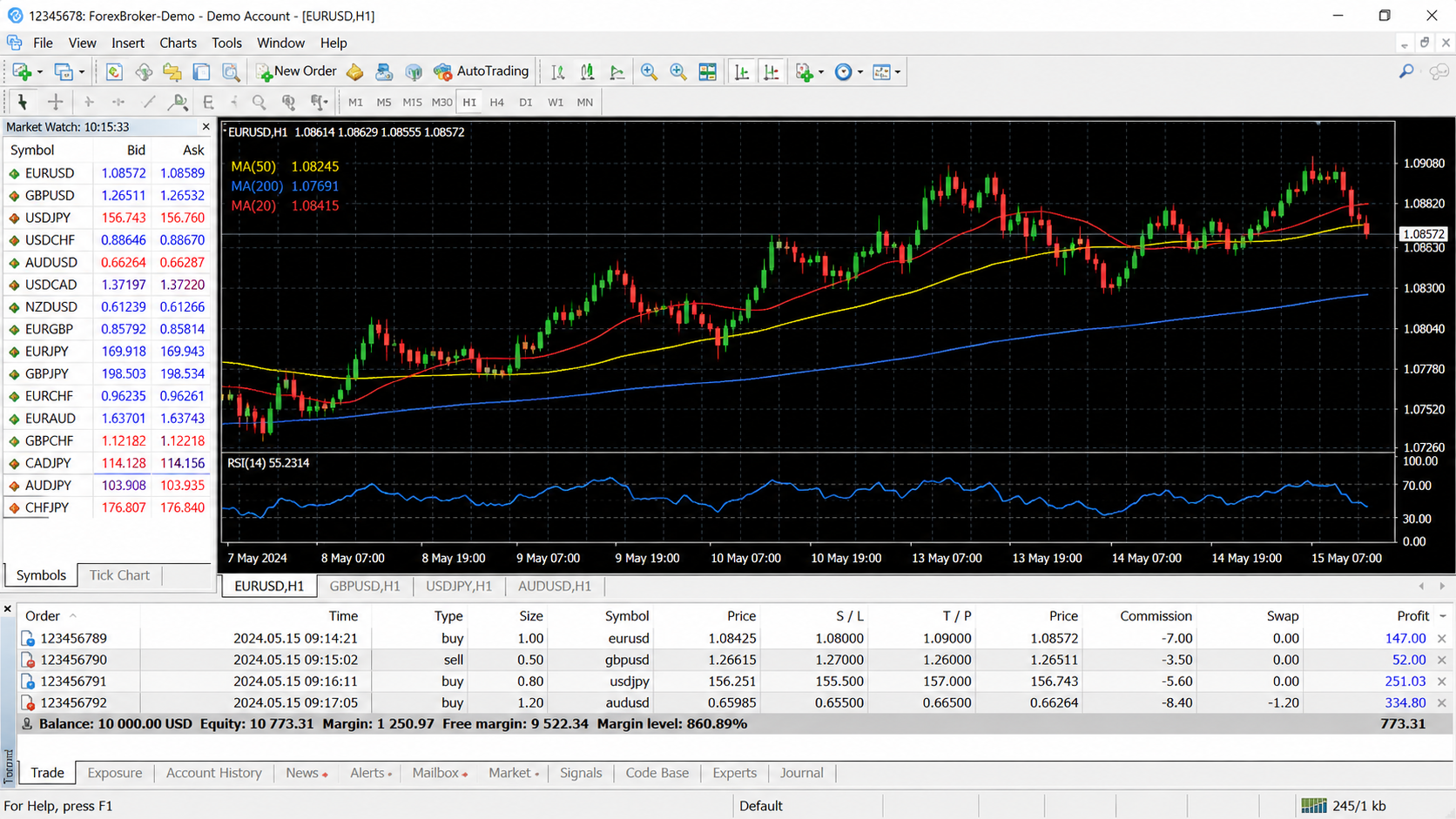
The Market Watch window, located on the left side of the screen, lists all available instruments you can trade. Right-click on this window to show or hide specific symbols, or to view the full symbol list your broker offers. Drag any instrument from the Market Watch onto a chart to begin analyzing it. The toolbar at the top of the chart window lets you switch between timeframes (M1, M5, M15, H1, H4, D1, W1, MN), apply technical indicators, and draw trend lines, Fibonacci retracements, and other analytical tools. Take some time to explore each menu and toolbar option — familiarity with the interface will make your trading smoother and more efficient.
Placing Your First Trade
- Right-click on the chart and select Trading → New Order, or press F9 on your keyboard for the same effect
- Set your volume (lot size) — start with 0.01 (micro lot) until you are comfortable with order execution
- Set stop loss and take profit levels in pips or at specific price levels before sending the order
- Choose between Instant Execution (fill at current market price) or Pending Order (entry at a specified price level)
- Click Buy or Sell to execute, then monitor the order in the Terminal panel at the bottom
Before trading real money, practice placing every order type on a demo account. Become comfortable with market orders, pending orders (buy limit, sell limit, buy stop, sell stop), and one-cancels-other (OCO) setups. Understanding how each order type works gives you the flexibility to implement any trading strategy precisely.
Customizing Charts
Change chart types between candlestick (most popular), bar, and line by clicking the appropriate icon in the toolbar. Candlestick charts provide the most visual information about price action, including open, high, low, and close values for each period. Save chart templates (right-click → Template → Save Template) for quick switching between different setups — for example, one template for your trend-following strategy with moving averages, and another for your reversal strategy with RSI and MACD. Add indicators from the Navigator panel on the left by simply dragging them onto your chart. Adjust each indicator's parameters by double-clicking the indicator line on the chart.
Using the Terminal
The bottom panel, called the Terminal, contains your most important trading information. The Trade tab shows all open positions with real-time profit/loss updates, current price, and order details. The History tab lets you review past trades — essential for your trading journal analysis. The Account tab displays your balance, equity, margin, free margin, and margin level in real time. Get into the habit of checking your margin level regularly; a level below 100% means you cannot open new positions, and a level approaching 50% risks a margin call. The Terminal also includes an Alerts tab where you can set price and indicator notifications, and a News tab that displays financial news feeds from your broker.
Working with Timeframes
MT4 offers nine timeframes, from 1-minute (M1) to monthly (MN). Each timeframe tells a different story about price action. Lower timeframes (M1, M5, M15) show noise and are best for scalpers and short-term traders. Higher timeframes (H4, D1, W1) reveal the dominant trend and major support/resistance levels. Professional traders typically analyze the higher timeframe to determine the trend direction, then drop to a lower timeframe to find precise entry points. This multi-timeframe approach — sometimes called the "three-screen method" — is one of the most effective ways to use MT4's charting capabilities.
Automated Trading with Expert Advisors
One of MT4's most powerful features is the ability to run automated trading strategies called Expert Advisors (EAs). An EA is a program written in MQL4 that can analyze the market, make trading decisions, and execute orders automatically according to a predefined set of rules. While creating your own EA requires programming knowledge, thousands of free and commercial EAs are available online. To use an EA, place the file in your MT4's Experts folder, attach it to a chart, and enable automated trading. Always backtest EAs extensively on historical data and forward-test on a demo account before risking real money.
Conclusion
MetaTrader 4 is a powerful yet accessible platform that provides everything a trader needs to analyze markets, execute trades, and manage risk. Start by learning the basic navigation and order placement, then gradually explore the more advanced features like custom indicators, chart templates, and automated trading. Spend at least two weeks on a demo account practicing every feature before trading live. The time invested in mastering MT4 will pay dividends throughout your entire trading career. Remember that the platform is a tool — your skill and discipline determine your success, not the software alone.

A passionate writer and content creator.
Community Comments
Please log in to comment on this blog post.
Log InNo comments yet. Be the first to comment!